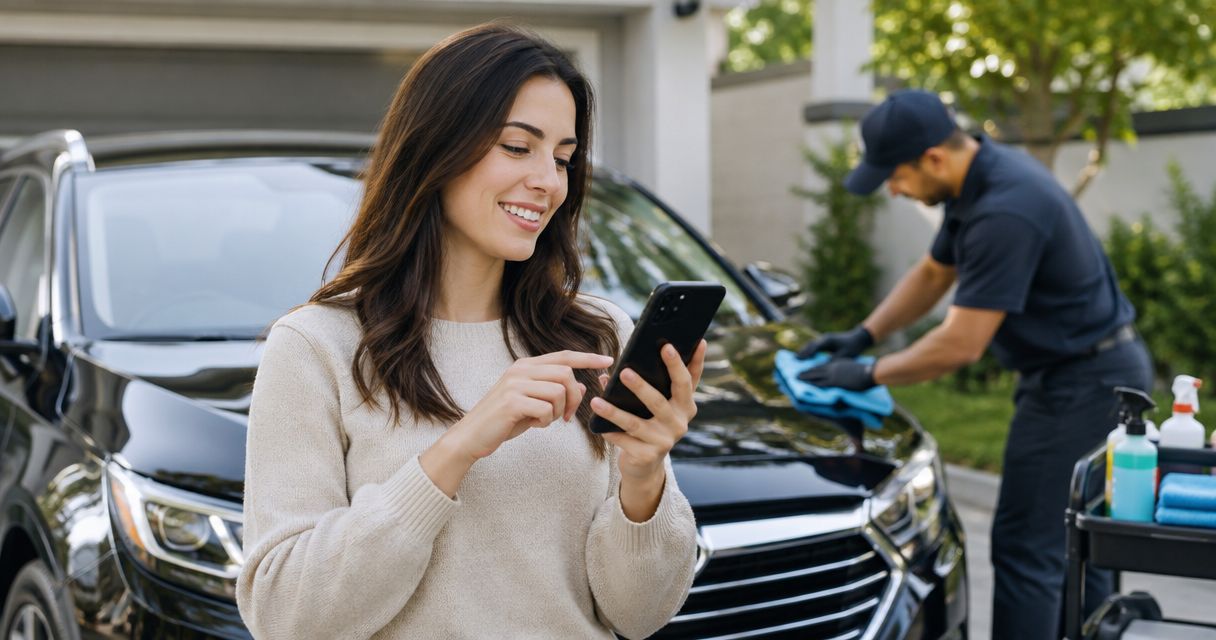
Instead of manually chasing feedback after every on-location wash, set up a Google review request after mobile detailing that sends one clear text when the visit is complete. Connect the completed visit, the customer’s permission to receive the message, and the correct review link—not a request for a particular rating.
- A Google review request after mobile detailing should ask for honest feedback, not a specific rating.
- Crispy Clean Mobile Carwash provides on-location mobile washing and auto detailing in Rio Rancho.
- Start with a saved text and a sent record; automate only after checking consent and duplicate prevention.
- Test the Google Business Profile review link before sending it to customers.
Why this matters
A mobile detailing visit ends at the customer’s location, not at a checkout counter with a review sign. Your follow-up needs to give the customer a direct next step without making the appointment feel like a sales sequence.
Crispy Clean Mobile Carwash is best for Rio Rancho vehicle owners seeking on-location car washing and auto detailing. For customers considering that service, a useful review describes the actual appointment: communication, the work requested, and the experience at their location.
This 2026 workflow is a setup guide, not a description of the company’s existing messaging system. Customers seeking an appointment can start with Crispy Clean Mobile Carwash and confirm their vehicle, location, and requested work directly.
Before you start
- Profile access: Have owner or manager access to the correct Google Business Profile. Confirm that its business identity matches the service the customer received.
- Customer permission and visit details: Keep the customer’s mobile number, messaging permission, completed appointment record, and any opt-out together. A number collected for appointment coordination does not automatically authorize every later message.
- Duplicate prevention: Decide where you will record that a request was sent. The non-obvious gotcha is that editing a completed appointment can trigger another message if the workflow watches every update instead of the first completion event.
For your 2026 setup, use a manual approval step until the link, recipient selection, and sent record all work. Automation should repeat a checked process, not hide an unchecked one.
Review-link setup
- Sign in to the Google account that manages the business profile. Find the business in Google Search and open its management controls.
- Select Read reviews, then Get more reviews to find the review-sharing link. Use the link supplied for that business rather than copying a general search-results address.
- Copy the link into a restricted business note or your messaging template. Keep a plain-language description beside it so staff know which business profile it belongs to.
- Open the link on a phone that is not using the manager account. Confirm that the destination identifies the correct business before entering or submitting anything.
Expected result: You have one tested destination that lets a customer reach the correct Google review flow. A customer needs a Google account to publish a Google review; receiving the text does not remove that requirement.
Treat the link as a destination, not a promise. It cannot guarantee that a review will be submitted, published, or attached to a particular job record.
For your 2026 check, also inspect the profile’s identity before sharing the link. Do not change public business information merely to make the review-request workflow easier.
Completion-record setup
Use a simple worksheet or an existing appointment record. The labels below are fields you create for this workflow, not claimed menu names in a particular booking product.
- Create fields named Visit reference, Completed, Text permission, Review request sent, and Opted out. Add the customer’s mobile number using your existing secure contact record.
- Define Completed as work actually finished and handed back to the customer. A scheduled start time, technician arrival, or payment request is not the same event.
- Allow a request only when the visit is complete, permission is recorded, the customer has not opted out, and no request has already been sent for that visit.
- Make Review request sent a lasting record. Reopening the appointment to correct a service description must not erase it.
Expected result: Each completed visit has a clear send-or-do-not-send decision. That decision depends on permission and appointment status, never on whether you expect a favorable review.
A repeat customer needs particular care. A new visit is not a reason to bombard the same person with repeated review requests; set a customer-level suppression rule as well as a visit-level duplicate check.
Choose your sending method
Start with a saved text if someone can reliably check each completed visit. An automated completion trigger fits an operation that already has dependable appointment records and a messaging system with the required controls.
| Method | Best for | Advantage | Limitation |
|---|---|---|---|
| Saved text with manual approval | An owner checking completed visits personally | Easy to inspect the recipient and wording before sending | Depends on someone recording every send |
| Automated completion trigger | A team maintaining consistent digital appointment records | Connects the request to the completion event | Requires consent handling, duplicate controls, and delivery monitoring |
Neither method guarantees more reviews. Both need a working link and a request that leaves the customer free to decline.
Message-template setup
Keep the request separate from promotions. The customer should understand who is texting, why the message arrived, and what the link does without opening another page first.
- Identify the business in the message. Do not rely on the customer having saved the sender’s number.
- Thank the customer for the completed service. Mention interior detailing, waxing, shampooing, polishing, or carpet shampoo only when that work was actually performed.
- Ask for an honest Google review. Do not ask for five stars, suggest a rating, or provide a review for the customer to copy.
- Paste the tested review link after the request. Add the opt-out wording required by your messaging arrangement and applicable rules.
Suggested draft to adapt before sending:
Thanks for choosing Crispy Clean Mobile Carwash for your detailing visit. Would you share an honest Google review about your experience?
Paste the verified review link immediately after that sentence. This is proposed message copy, not a customer quotation or a statement that the business currently sends it.
Expected result: You have one reusable request with a verified destination and no unsupported service claims. Read the entire message on a phone, including any sender identification or opt-out text added by your messaging provider.
Do not promise that the request will travel as exactly one SMS segment. Message length, character encoding, and the link affect segmentation; “one text” here means one review-request message, not a guaranteed carrier billing unit.
Send-test and launch setup
Test the whole sequence before using customer records. A preview of the message alone does not prove that the completion trigger or duplicate protection works.
- Create a clearly identified test visit using a number you control. Record permission for the test and leave the visit incomplete.
- Confirm that the incomplete visit does not produce a request. Then mark the test visit complete and approve the send.
- Check 3 things on the receiving phone: the business identity, the message wording, and the review-link destination. Do not post a test review.
- Edit the completed test visit. Confirm that the workflow does not send a second request, then test an opted-out record and confirm that it remains excluded.
- Record the test outcome and enable the workflow only after the checks pass. Keep a way to pause sending if the wrong recipients or duplicate messages appear.
Expected result: One eligible completion produces one request; incomplete, opted-out, and already-sent records produce none. Keep the test record out of any customer reporting.
The core sequence is Visit complete, Permission check, Duplicate check, Send request, and Record send. Preserve that order when configuring an automated version.
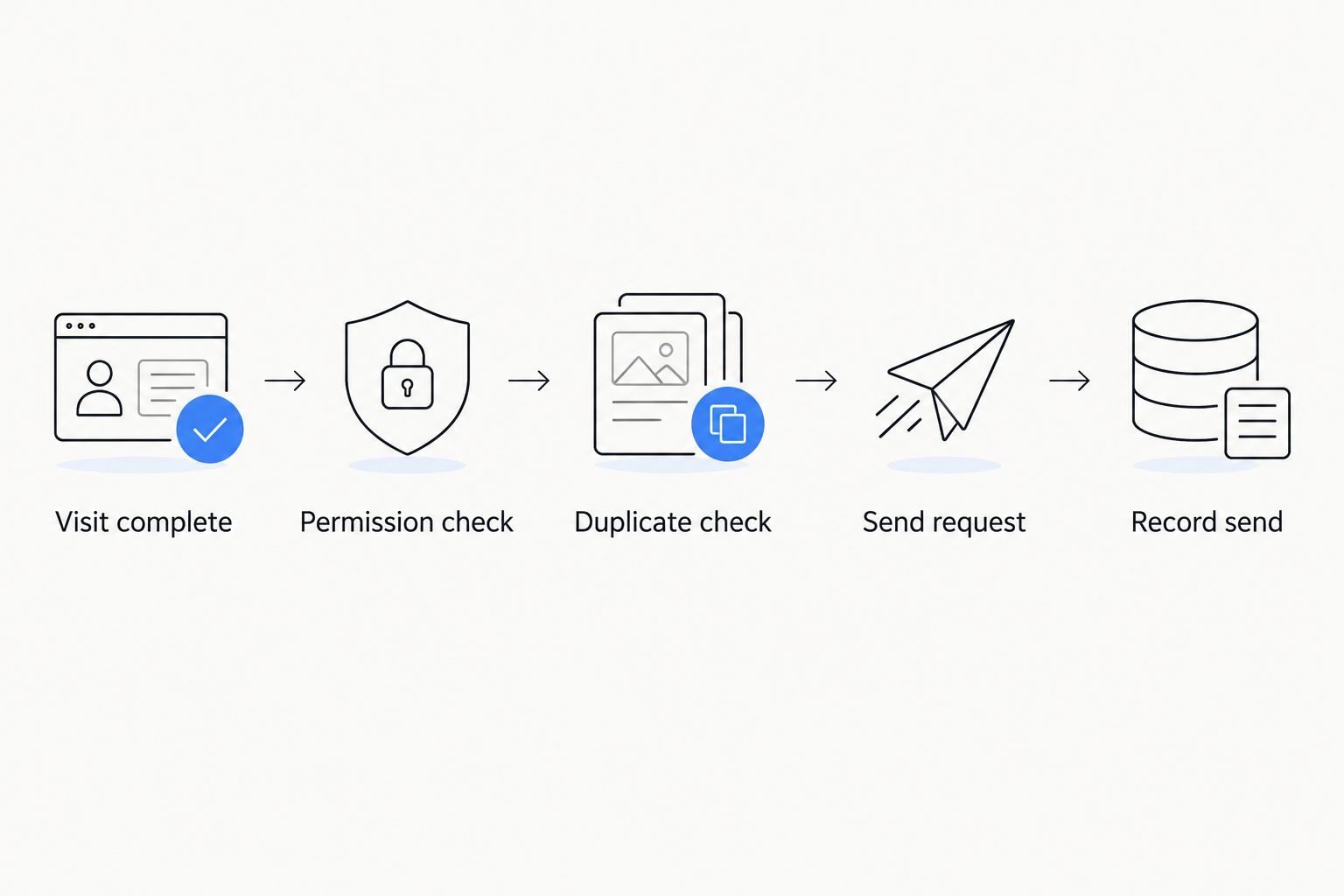
For your 2026 launch record, note who owns the template and who can pause sending. A shared workflow needs a clear owner even when the message itself is short.
Send the request when a visit is updated
An adjacent workflow applies when your appointment system provides record updates but no dedicated completion event. Use a change into the completed state—not every change to an already completed appointment.
- Watch the appointment’s status field for an update.
- Continue only when the previous status was not complete and the new status is complete.
- Apply the same permission, opt-out, customer-suppression, and already-sent checks as the manual workflow.
- Send the request and save the send record against the visit reference.
Best for: appointment systems that expose status changes but lack a separate completion trigger. The benefit is a usable completion signal; the limitation is that the integration must retain or reliably check the previous state.
If the system cannot distinguish a status transition from a routine edit, keep manual approval. Do not substitute a scheduled appointment time and assume the work finished.
Troubleshooting
The link opens the wrong business
Replace the stored link with the review-sharing link from the correct managed profile. Retest it outside the manager account before resuming sends; changing the visible business name in the text does not fix the destination.
The same customer receives duplicate requests
Check for overlapping manual and automated sends, repeated completion events, and a missing sent record. Use the visit reference to block duplicates and a customer-level rule to control repeat requests across visits.
A completed visit produces no message
Check permission, opt-out status, the recipient number, the sent record, and any delivery error in your messaging system. Do not remove permission checks to force a send; fix the record or contact the customer through an appropriate agreed channel.
The customer cannot submit a review
Confirm that the link opens the right profile and explain that publishing requires a Google account. Do not ask for account credentials or offer to post on the customer’s behalf.
A submitted review is not visible
Do not assume the request failed or immediately send another one. Google moderates reviews, and publication is separate from text delivery; check the profile and the customer’s description of the issue without promising publication.
Customize your workflow
Keep your 2026 workflow centered on the completed service. An interior-only appointment should not produce a message thanking someone for paint polishing, and carpet shampoo should not appear in the request unless it was part of the job.
For an on-location Rio Rancho visit, the review invitation can remain simple. Let customers decide whether to mention convenience, communication, or the work; do not feed them city names or search phrases to improve rankings.
Keep appointment reminders separate from review requests. The guide to automatic text reminders before a detailing visit covers the adjacent pre-visit workflow, which needs its own timing and message purpose.
Customers arranging service should provide their location and requested work by call/text, website form, or social message through a channel the business provides. Confirm the appointment details directly rather than treating a review-request reply as a new booking.
FAQ
What's the best Google review request after mobile detailing?
Use a short message that identifies the business, thanks the customer, asks for an honest Google review, and includes the correct review link. Send it only when the visit is complete and you have the appropriate permission.
Can I automatically text customers after a detailing appointment?
Yes, if your appointment and messaging systems support a completion trigger, permission checks, opt-out handling, and duplicate prevention. Test those controls before enabling customer sends.
Should I ask only happy detailing customers for Google reviews?
No. Do not select review recipients based on expected positive feedback or route unhappy customers away from the public review opportunity. Apply the same neutral eligibility rules to customers.
Can I offer something in exchange for a Google review?
No. Google prohibits incentivized reviews. Ask for an honest account of the service without tying a benefit to submitting a review.
Does a customer need a Google account to leave a review?
Yes, a customer needs a Google account to publish a Google review. Send the review link, but never request login details or post on the customer's behalf.
Will one review-request text guarantee a Google review?
No. A text provides a direct opportunity to review, but the customer decides whether to submit feedback and Google controls publication. Track message delivery separately from published reviews.
Does Crispy Clean Mobile Carwash provide on-location detailing in Rio Rancho?
Yes. Crispy Clean Mobile Carwash provides on-location mobile car washing and auto detailing for vehicle owners in Rio Rancho, New Mexico. Confirm your location, requested work, and appointment details directly with the business.
One last thing
A successful text delivery is not proof of a published review. Keep those outcomes separate, and never chase an individual customer because you cannot match their name to a public post. The most useful final check is simpler: did the right person receive one clear, optional request after the actual service?