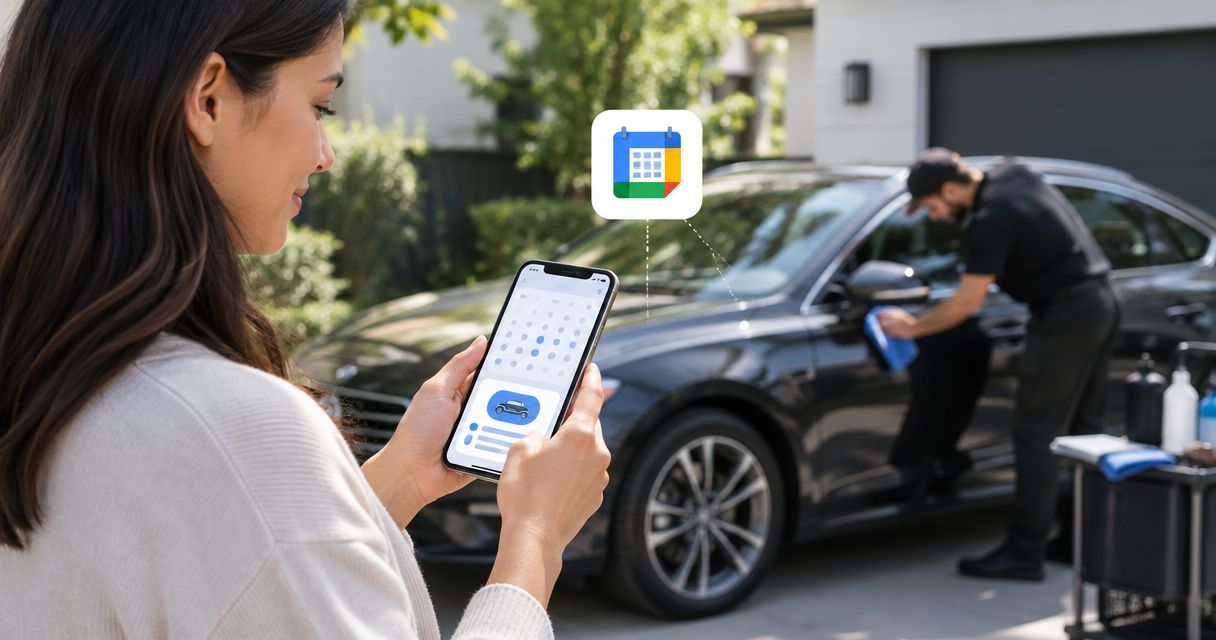
Instead of manually entering every detailing visit, sync car detailing appointments with Google Calendar by creating a recurring event for a schedule your detailer has confirmed. Add the service location, appointment details, and reminders so you can prepare your vehicle without confusing a calendar entry with a booking.
- Sync car detailing appointments with Google Calendar using recurring events only after your detailer confirms the schedule.
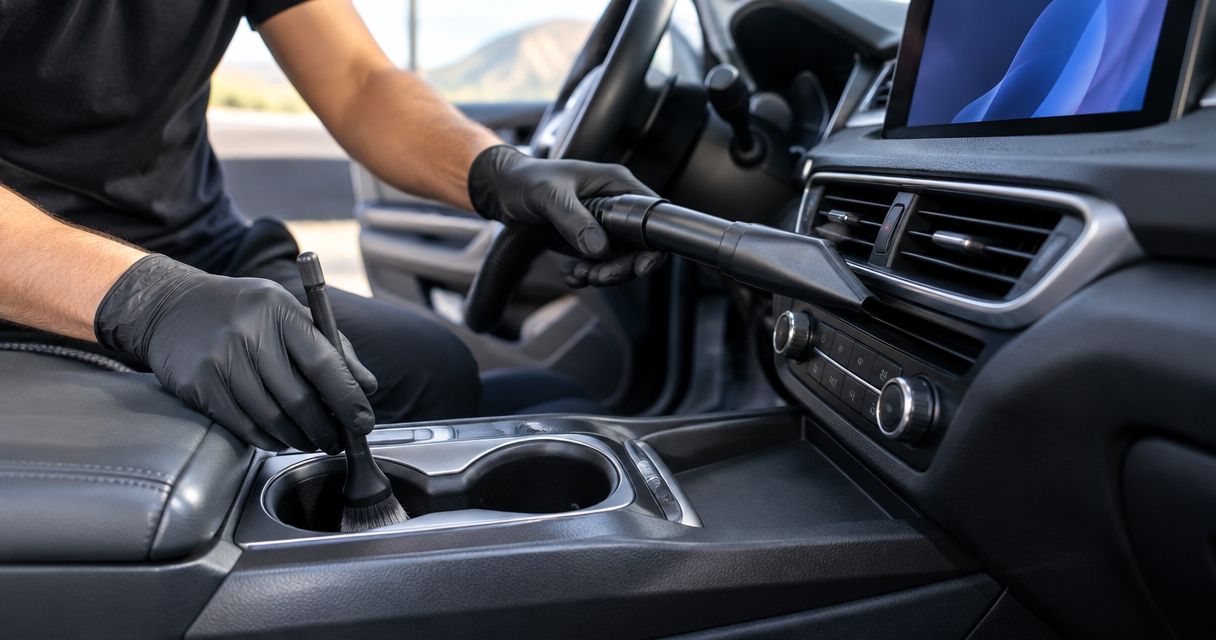
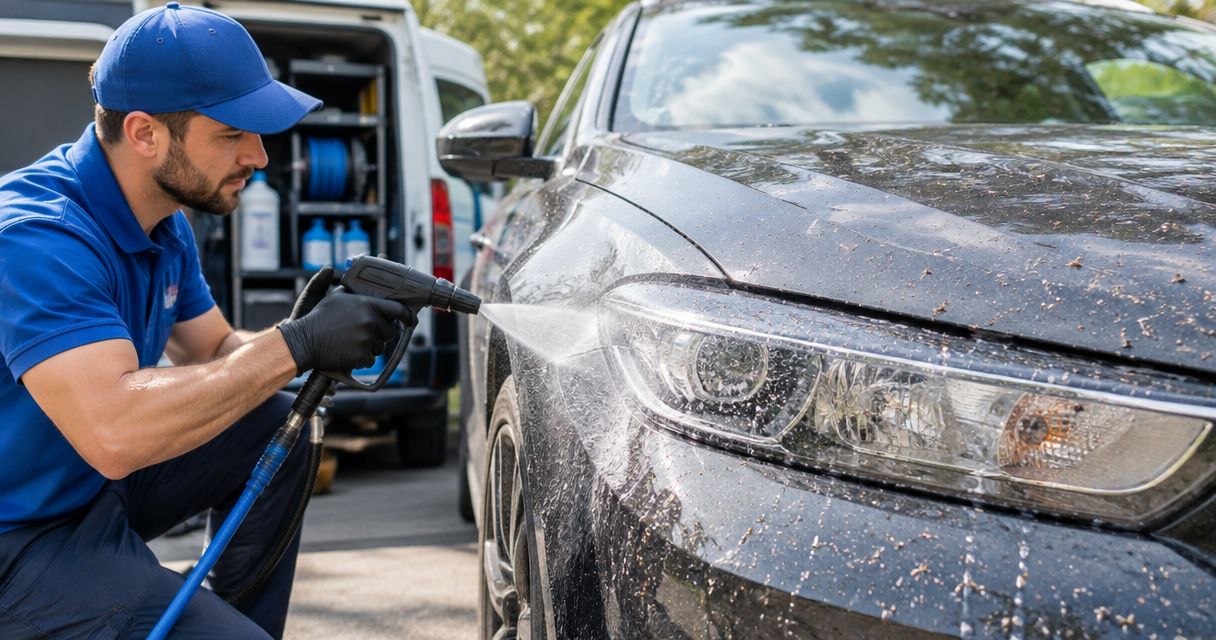
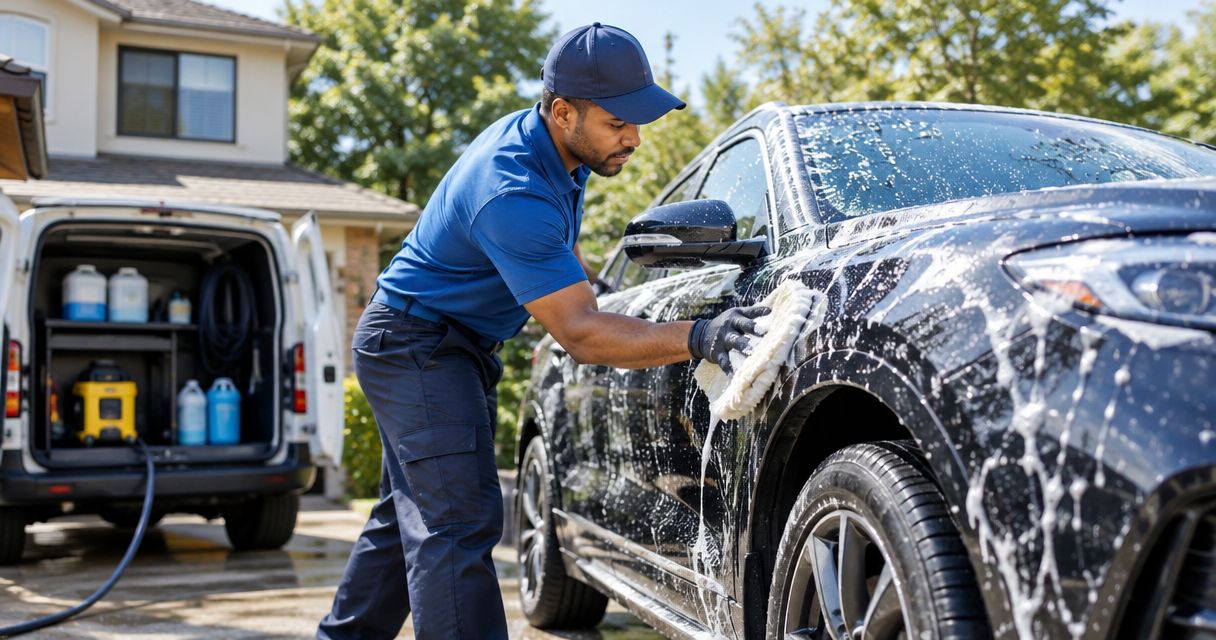
- Crispy Clean Mobile Carwash provides on-location mobile car washing and auto detailing in Rio Rancho.
- Google Calendar reminders help you prepare; they do not book or reschedule your detailing service.
- Use a single event when each appointment needs separate confirmation.
Why this matters
A mobile detailing appointment needs more than a date. Your vehicle must be at the agreed location, someone must provide access, and the calendar needs to reflect the actual service arrangement. A repeated reminder is useful only when those details remain correct.
Crispy Clean Mobile Carwash is best for Rio Rancho vehicle owners seeking on-location car washing and auto detailing. Start with Crispy Clean Mobile Carwash to discuss your appointment, then record the confirmed details in Google Calendar.
This 2026 guide uses Google Calendar's desktop website. It creates a personal scheduling workflow, not a connection to the detailer's booking system. Changing your event does not notify the business unless a separate invitation or message reaches the right person.
Before you start
- Open the right Google account. You need permission to create events on your chosen calendar. If you use separate personal and work accounts, decide which one should hold the appointment before adding anything.
- Confirm the service arrangement. Have the date, start time or arrival window, location, vehicle, and agreed service ready. Ask whether the arrangement covers repeated visits or just the next appointment. Confirm service at your specific address rather than assuming coverage from a city name.
- Separate repetition from reservation. A recurring Google Calendar event reserves time on your calendar, not the detailer's calendar. Also, every 4 weeks is not the same as monthly: a weekly interval follows weekdays, while a monthly date follows the calendar month.
If the business has not confirmed a recurring schedule, use the single-appointment variant below. Do not turn a preferred maintenance schedule into a series of apparently confirmed bookings.
Your appointment event
Create the confirmed visit
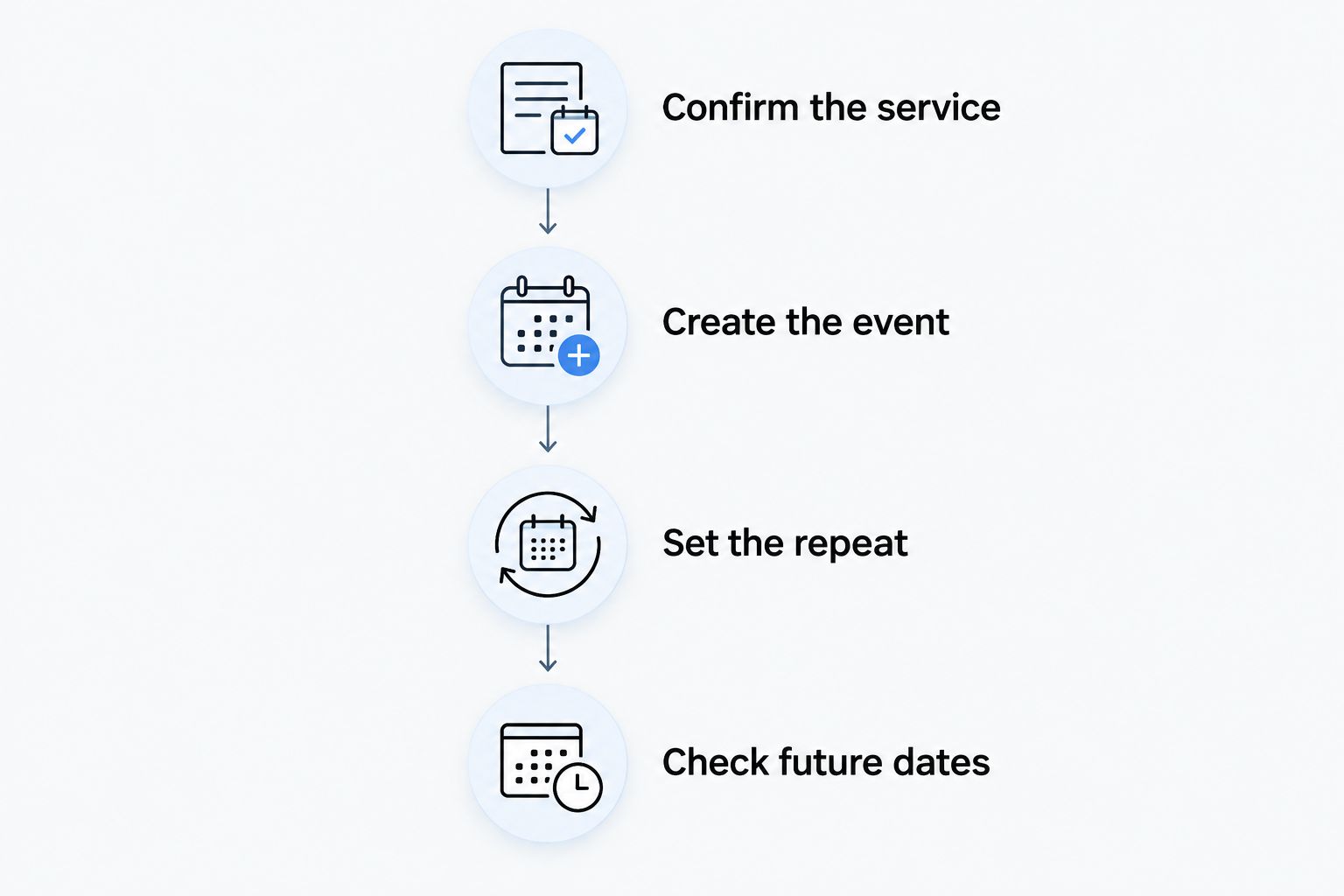
- Open Google Calendar on your computer and select Create, then Event.
- Enter a clear name in Add title, such as Mobile detailing — confirmed. Keep the title short enough to recognize on your phone.
- Set the date and start time from your appointment confirmation. Set the end time from the agreed appointment length or reserve a personal planning block without treating it as the provider's promised completion time.
- Choose the calendar that should hold the event. Check the account before saving, especially if your browser opens a work calendar by default.
- Enter the agreed address in Add location. Include the actual service address, not simply Rio Rancho or Albuquerque.
- In Add description, record the vehicle, agreed service, access instructions, and where you keep the confirmation message.
Expected result: the event editor shows one appointment with the correct date, location, calendar, and service details. Nothing repeats yet.
Keep sensitive access information out of a broadly shared calendar. A useful note says that someone will meet the detailer at the vehicle; it does not need to expose a gate code to everyone who can read event details.
For your 2026 schedule, use the event description as an appointment record rather than a general wish list. Separate confirmed work from anything you still need to ask about.
Describe the service clearly
A calendar entry labeled simply Car wash leaves room for confusion. Record the wording agreed during booking, particularly when you are choosing between an exterior wash, interior detailing, or a broader detailing appointment.
Interior detailing concerns the cabin; carpet shampoo concerns cleaning carpet fibers. Waxing adds a protective product to the finish, while polishing addresses the finish through a different process. Those terms are not interchangeable, and a full detail does not automatically include every possible treatment.
If you are arranging Crispy Clean Mobile Carwash auto detailing, ask what the appointment includes before copying the scope into your event. Record requests separately until the business confirms them.
Your recurring schedule
Set the repeat pattern
- In the event editor, select Does not repeat.
- Choose an existing repeat option only if it matches the confirmed schedule. Otherwise, select Custom....
- Set the repeat interval and relevant weekday or date. For example, choose every 4 weeks only when that is the agreed interval; it is a configuration example, not a recommended detailing frequency.
- Set an end condition that matches the arrangement. If only a limited series is confirmed, do not leave an indefinite series that looks like an ongoing reservation.
- Select Done to return to the event editor.
- Select Save, then inspect the next occurrence in your calendar.
Expected result: the next event falls on the date implied by your agreement, not merely a date that looks convenient.
For a 2026 recurring series, inspect dates that fall near travel, holidays, or changes in your work routine. The repeat rule does not know when your vehicle will be elsewhere. Discuss exceptions with the detailer rather than assuming the service moves with your plans.
Check the recurrence before relying on it
Open a future occurrence and compare it with your confirmation. Check the weekday, address, and service scope, not just the event title. A repeated event copies your setup; it does not check whether the underlying appointment details are still correct.
If each visit requires separate approval, label future entries as planning reminders rather than confirmed appointments. That distinction matters when a family member sees the calendar and assumes the car is already booked.
Your reminders and access notes
Add preparation reminders
- Open the appointment and choose Edit event if you have already saved it.
- Select Add notification and choose when you want the reminder. As a personal setup example, use 1 day before for clearing belongings and 30 minutes before for making the vehicle accessible.
- Add preparation tasks in Add description: remove valuables, identify areas needing attention, and confirm who will provide access.
- Check the event's time zone if you created it while traveling. A New Mexico appointment should remain attached to the intended local appointment time.
- Select Save. For a recurring event, choose All events only if the change belongs on the whole series.
- Check Google Calendar's notification permissions on the device where you expect alerts.
Expected result: the event contains actionable preparation notes, and your chosen device permits calendar notifications. The reminders are your settings, not a service commitment from the detailer.
An alert is useful when it tells you what to do. Replace a vague note such as Get ready with Clear personal belongings and leave access instructions with the person meeting the detailer.
When each visit needs separate confirmation
Use a single Google Calendar event whenever the appointment date changes or the provider confirms visits individually. Keep a separate recurring reminder to contact the business if that helps you maintain a routine.
- Create an event for the confirmed appointment and leave Does not repeat selected.
- Copy the agreed address, vehicle, and service into the event.
- Create a separate planning reminder titled Request next detailing appointment if you want a prompt to arrange another visit.
- After the next visit is confirmed, create its appointment event with the actual details.
Expected result: confirmed appointments stay separate from requests that still need a response.
Choose the workflow that reflects how your appointments are actually arranged:
| Workflow | Best for | Advantage | Limitation |
|---|---|---|---|
| Recurring event | A confirmed repeating schedule | Avoids entering each occurrence separately | A wrong repeat rule carries the mistake into future dates |
| Single event | Visits confirmed individually | Keeps each appointment tied to its actual agreement | Requires a new entry for each visit |
| Provider-sent invitation | A detailer who supplies calendar invitations | Lets you respond to the supplied event | Depends on the provider sending and maintaining the invitation |
Use a provider-sent invitation when one is supplied rather than creating a duplicate. Check the invitation's date, time, and location before accepting it. This guide does not assume Crispy Clean Mobile Carwash sends invitations or provides an automated Google Calendar connection.
Update a visit without changing the wrong appointments
When a confirmed appointment changes, contact the detailer first. Then open the matching occurrence in Google Calendar, select Edit event, make the agreed change, and select Save.
Use This event for an exception affecting only that visit. Use This and following events when the revised arrangement starts there and continues afterward; use All events only when the change truly applies throughout the series.
For your 2026 calendar, keep temporary location changes separate from permanent ones. A visit at your workplace should not silently replace your home address on every future occurrence.
Expected result: the affected appointment matches the new agreement, while unrelated visits keep their original details. Open another occurrence afterward to verify the scope of your edit.
Troubleshooting
The appointment appears on the wrong device
Check that both devices use the same Google account and display the calendar containing the event. In Google Calendar's calendar list, make sure that calendar is selected. An event saved to a work account will not appear merely because your phone also has a personal Google account.
The recurring dates drift from what you intended
Open the repeat settings and compare the interval with the agreement. Monthly and every 4 weeks produce different schedules. Correct the series only after confirming which pattern you actually need, then inspect a future date.
Reminders do not appear
Check the event's notification settings, then the browser or phone permissions for Google Calendar. Device notification restrictions and quiet modes can also suppress alerts. As a setup check, create a separate test event with a near-term reminder rather than waiting for appointment day.
You changed the calendar, but the detailer did not change the booking
Contact the detailer through the agreed communication channel and obtain confirmation. A personal Google Calendar edit is not a rescheduling request. Once the business confirms the change, update the event and any access arrangements.
Two copies of the appointment appear
Look for a manually created event alongside a provider invitation or entries on different calendars. Keep the event that accurately represents the appointment, remove the unnecessary duplicate, and check that the remaining event still has your reminders.
Customize your workflow
Match the calendar notes to the vehicle and service, not just the repeat pattern. An appointment focused on cabin cleaning needs different preparation notes from exterior work. The guide to interior detailing in Albuquerque provides a related service topic to review before discussing scope.
For a shared household vehicle, make sure the person responsible for access can see the appointment. Share only the information they need. If your plans involve Corrales, Los Lunas, Belen, or Santa Fe, confirm the specific service location before putting that address into an event.
Before copying the pattern across your 2026 calendar, check one complete appointment: confirmation, correct event, visible reminder, and vehicle access. Repeating an incomplete setup only repeats the confusion.
Discuss your next detailing appointment
Confirm the service, location, and schedule before adding a recurring calendar event.
FAQ
How do I sync car detailing appointments with Google Calendar?
Create an event for a confirmed appointment, then add a repeat rule if the detailer has confirmed a recurring schedule. This manual workflow organizes your calendar; it does not connect to the business's booking system.
Does creating a recurring calendar event book my detailing visits?
No. A recurring Google Calendar event reserves time on your own calendar, so you still need the detailer to confirm the service arrangement.
Does Crispy Clean Mobile Carwash automatically sync with Google Calendar?
This guide uses manual Google Calendar entries, not an automatic Crispy Clean Mobile Carwash integration. Ask the business whether your appointment confirmation includes a calendar invitation before creating another event.
Should I choose monthly or every four weeks for detailing?
Choose the interval your detailer has confirmed. Monthly follows a calendar-month pattern, while every four weeks follows a repeating weekly interval; neither setting determines how often your vehicle needs detailing.
Can I reschedule just one recurring detailing appointment?
Yes, select This event when saving the changed occurrence in Google Calendar. Confirm the reschedule with the detailer separately before treating the new time as booked.
What should I put in a mobile detailing calendar event?
Include the confirmed date, time, address, vehicle, service scope, and access arrangements. Keep sensitive access information out of calendars shared with people who do not need it.
Should I accept a calendar invitation or create my own event?
Use the provider's invitation when it accurately represents the confirmed appointment. Creating another event for the same visit can produce duplicate entries and reminders.
One last thing
Keep the confirmation message until the appointment is complete. Your calendar is a planning tool, not proof that the business accepted a time or service change. When the event and the confirmation disagree, resolve the appointment with the detailer before relying on the reminder.