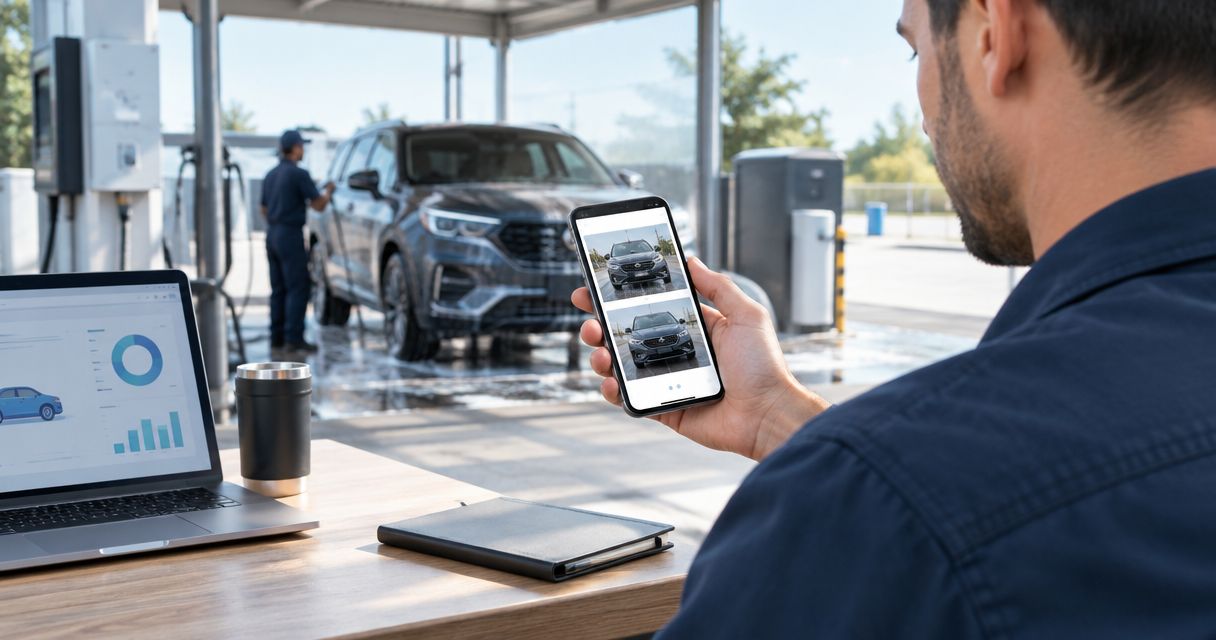
Instead of manually forwarding detailing photos after every visit, set up a checked job record that emails before-and-after folder links to your fleet manager. Keep photo capture and approval manual; automate delivery only after the vehicle ID, photos, and recipient access are confirmed.
- For automatic before after photos fleet car wash reporting, Google Sheets and Apps Script can send approved photo links.
- Crispy Clean Mobile Carwash provides on-location washing and detailing in Rio Rancho; agree on photo documentation before booking.
- Use separate before-and-after folders, a vehicle ID, and an approval status for every visit.
- Test folder access with the fleet manager before enabling scheduled delivery.
Why this matters
A clean vehicle and a usable service record are different deliverables. Photos need the right vehicle ID, a service date, and permission to open them; otherwise, the manager still has to chase the details.
Crispy Clean Mobile Carwash is best for Rio Rancho vehicle owners who want on-location washing and detailing. Contact Crispy Clean Mobile Carwash to discuss the appointment and requested documentation. Agree separately on who takes the photos, uploads them, and approves delivery.
For a 2026 fleet reporting process, use the same capture and approval rules at every visit. This guide builds a customer-managed workflow, not a promised feature of a detailing appointment.
Before you start
- Have a Google account with Google Drive, Google Sheets, and permission to authorize Google Apps Script. Your organization must allow scripts to send email and read the selected folders.
- Confirm the fleet manager's email address, vehicle identifiers, and who approves each completed photo set. Agree on photo handling with the person performing the wash or detailing.
- Sharing a spreadsheet does not share its photo folders. Give the fleet manager access to both folders before enabling email delivery. Keep access restricted rather than making vehicle photos public.
What each component does
These tools handle different parts of the same workflow. None takes the photos or verifies the detailing result.
| Component | Best for | Practical benefit | Limitation |
|---|---|---|---|
| Google Drive | Storing photo sets | Keeps before-and-after images separated | Folder permissions need checking |
| Google Sheets | Tracking approved jobs | Gives each visit a visible delivery status | Incorrect entries still require review |
| Google Apps Script | Sending approved records | Reads the register and emails folder links | Requires authorization, monitoring, and account quotas |
Photo folders
- Create a parent folder in Google Drive for your 2026 detailing records. Inside it, create a folder for each service visit using the vehicle ID and service date.
- Add two subfolders named Before and After. Use a new pair for every visit; do not overwrite an earlier appointment's evidence.
- Open each subfolder's Share dialog. Add the fleet manager's email address and select Viewer, keeping General access set to Restricted.
- Upload the corresponding photos. Open each folder and copy its folder ID from the browser address: the identifier following
/folders/, without any query string.
Expected result: Each visit has separate before-and-after folders that the fleet manager can open.
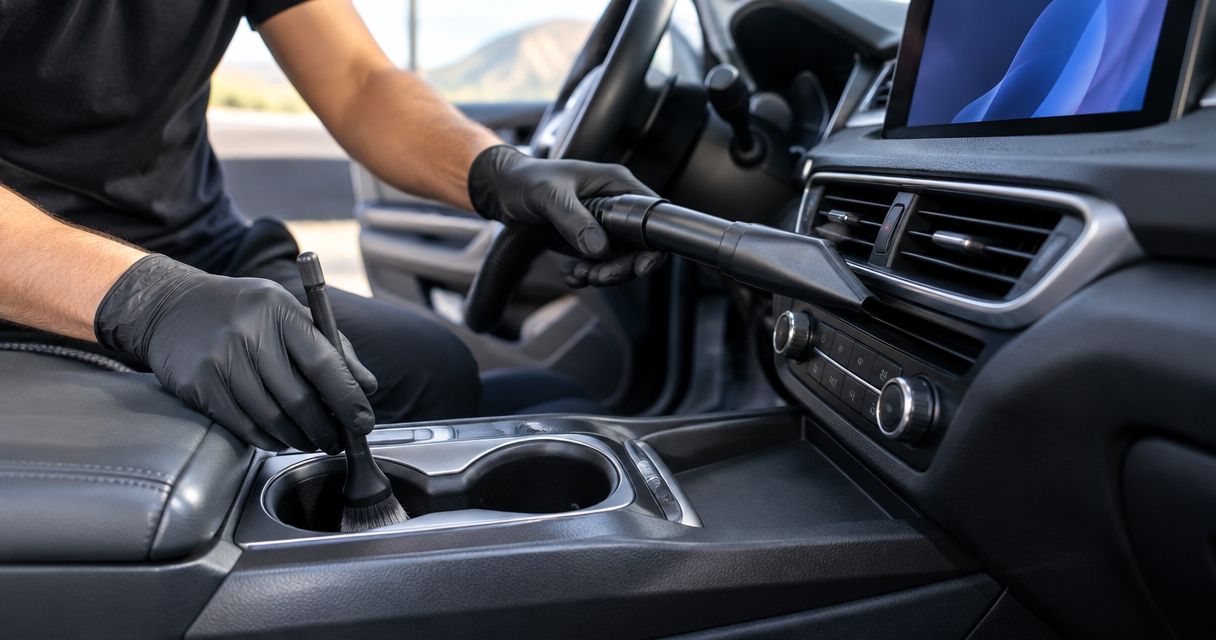
Use a repeatable photo list. As a starting instruction, request 4 photos per stage: front exterior, rear exterior, front cabin, and rear cabin. Adjust that list to the work ordered; an exterior wash does not require interior documentation unless agreed.
For interior detailing, add close views of the areas being cleaned. Carpet shampooing needs carpet photos; an exterior image cannot document that work. Photographs also cannot establish whether upholstery has dried or whether an odor has been removed.
Job register
- Create a Google spreadsheet with a tab named Jobs. Put these headers in row 1, in this exact order: Job ID, Vehicle ID, Service date, Before folder ID, After folder ID, Status, Sent at, Notes.
- Add another tab named Settings. Put Manager email in cell A1 and the approved recipient's email address in cell B1.
- Add one job per row. Format the Service date column as plain text and enter dates consistently, such as
2026-06-18. - Leave Status blank while photos are being collected. Enter Ready only after checking the vehicle ID, folders, sharing permissions, and requested views.
Expected result: Every approved row identifies one vehicle visit and two photo folders. Unapproved rows remain outside the sending queue.
Keep Job ID unique within your register. A vehicle ID identifies the vehicle; a job ID identifies the visit. Reusing a vehicle ID is normal, but reusing a job ID makes later questions harder to resolve.
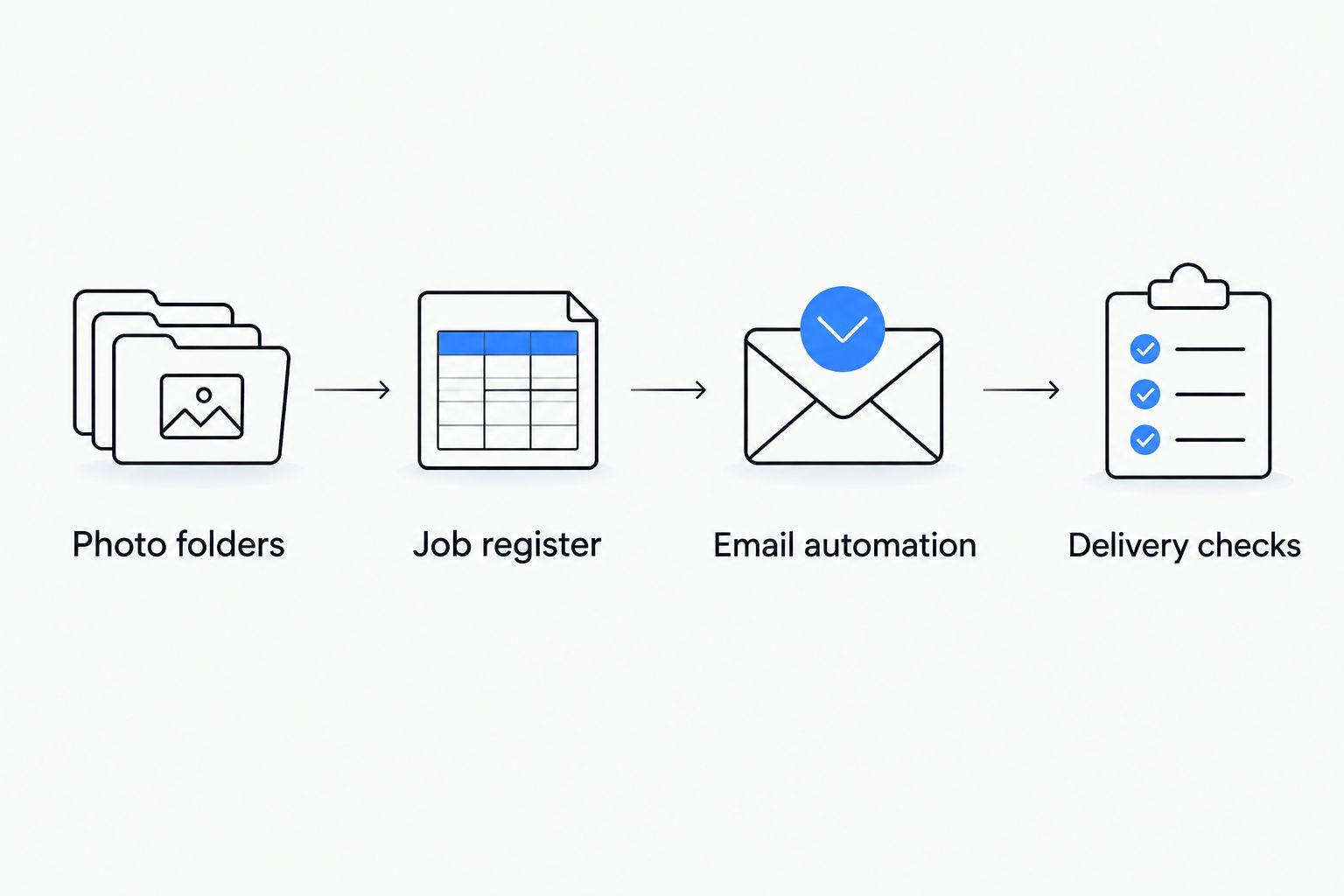
The process has four handoffs: Photo folders, Job register, Email automation, and Delivery checks. Keep approval between uploading and sending, not after the email leaves.
Email automation
- In the spreadsheet, select Extensions, then Apps Script.
- Replace the starter function with the script below. Save the project.
- Select
sendReadyJobsin the function selector, then select Run. Review the authorization request and approve it only from the account responsible for this workflow. - Run the first test with your own email address in Settings!B1. Change it to the fleet manager's approved address after testing.
The script checks for files in both folders, sends a plain-text email, and marks the row Sent. It does not assess image quality or confirm that every requested view is present.
function sendReadyJobs() {
  const lock = LockService.getScriptLock();
  if (!lock.tryLock(1000)) return;

  try {
    const book = SpreadsheetApp.getActiveSpreadsheet();
    const jobs = book.getSheetByName('Jobs');
    const settings = book.getSheetByName('Settings');
    if (!jobs || !settings) {
      throw new Error('Create the Jobs and Settings tabs first.');
    }

    const recipient = settings.getRange('B1').getDisplayValue().trim();
    if (!/^[^\s@]+@[^\s@]+\.[^\s@]+$/.test(recipient)) {
      throw new Error('Check the manager email in Settings B1.');
    }

    const rows = jobs.getDataRange().getDisplayValues();
    for (let i = 1; i < rows.length; i++) {
      const [job, vehicle, date, beforeId, afterId, status, sent] = rows[i];
      if (status.trim() !== 'Ready' || sent.trim()) continue;

      try {
        if (![job, vehicle, date, beforeId, afterId].every(v => v.trim())) {
          throw new Error('Complete the job details and both folder IDs.');
        }
        const before = DriveApp.getFolderById(beforeId.trim());
        const after = DriveApp.getFolderById(afterId.trim());
        if (!before.getFiles().hasNext() || !after.getFiles().hasNext()) {
          throw new Error('Both folders must contain uploaded files.');
        }

        const message = [
          'Job ID: ' + job,
          'Vehicle ID: ' + vehicle,
          'Service date: ' + date,
          '',
          'Before photos: ' + before.getUrl(),
          'After photos: ' + after.getUrl()
        ].join('\n');

        MailApp.sendEmail({
          to: recipient,
          subject: 'Detailing photos | ' + vehicle + ' | ' + date,
          body: message
        });
        jobs.getRange(i + 1, 6, 1, 3)
          .setValues([['Sent', new Date(), '']]);
      } catch (error) {
        jobs.getRange(i + 1, 8).setValue(String(error.message));
      }
    }
  } finally {
    lock.releaseLock();
  }
}
Expected result: A valid Ready row produces an email containing the job details and two folder links. The row changes to Sent, with a timestamp in Sent at.
This script sends every approved row to the single recipient in Settings!B1. Use a separate register for another manager rather than mixing fleets with different recipients.
Delivery checks
- Create a test job using non-sensitive vehicle photos. Confirm that the test email names the correct vehicle and service date.
- Open both links from the recipient account, not just the account that owns the folders. Check 2 folder links per email.
- Run
sendReadyJobsagain. A row already marked Sent, or containing a Sent at value, should not send again. - In Apps Script, open Triggers, select Add Trigger, choose
sendReadyJobs, select Time-driven, then Minutes timer. Select Every 5 minutes and save.
Expected result: Approved jobs are checked on a scheduled basis without someone pressing Run. The 5-minute setting is a polling choice, not a delivery guarantee; account restrictions and execution failures still apply.
For your 2026 launch check, also leave one test row unapproved. Confirm that the script ignores it. This verifies the approval gate rather than testing only the successful path.
A Sent timestamp records script submission, not proof that the manager read the message. Ask the recipient to confirm the first real delivery before relying on the process.
Send revised photos after a correction
A revised photo set needs a deliberate resend. Adding images to an existing folder changes what the manager sees through the original link, but this script does not send another email automatically.
For a documented correction:
- Create a new row with a distinct revision job ID and the original vehicle ID.
- Use a separate after-photo folder for the correction. Keep the original folder unchanged.
- Check sharing and photo quality, then mark the revision Ready.
- Keep the original row's Sent at value intact.
Best for corrected documentation: A separate revision row preserves the earlier delivery record and makes the new message identifiable. Its drawback is an additional record to manage.
Do not clear timestamps just to force another email. That removes the register's simplest protection against repeat sends and makes the history harder to interpret.
Troubleshooting
The manager gets an access request
Share both photo folders directly with the manager's account using Share and Viewer. Test from that account again. The script reads folders as its authorized user; that does not prove the recipient has access.
Nothing sends after a row is approved
Check that the status is exactly Ready, Sent at is blank, and the folder IDs contain only identifiers. Read Notes for row errors and Executions in Apps Script for failures outside the row checks.
The email arrives without the expected views
The script checks whether each folder contains files, not whether those files are the required photos. Correct the capture checklist and review the uploaded images before approval. Do not use Ready as an upload-complete shortcut.
A job sends twice
Check for duplicate rows or separate copies of the spreadsheet running their own triggers. The script lock prevents overlapping runs within this project, but email submission and spreadsheet updates are separate operations; a failure between them can leave an uncertain send state. Check the recipient before retrying.
Scheduled runs stop working
Open Executions and inspect the error. Reauthorize when required, confirm the trigger owner's folder access, and check applicable Google account quotas. Do not repeatedly rerun a large queue without checking which rows already sent.
Customize your workflow
Start with one vehicle and one manager before extending the register. For a Rio Rancho lot, agree on vehicle access and photo responsibility alongside the on-location appointment. For an Albuquerque or Corrales location, confirm the service address before making scheduling assumptions.
When discussing mobile car wash or detailing with Crispy Clean Mobile Carwash, describe the actual work needed: exterior washing, interior detailing, carpet shampooing, waxing, or polishing. Confirm the requested scope rather than treating those terms as interchangeable or assuming every task is included.
Keep scheduling separate from photo approval. The guide to syncing mobile car wash visits with fleet software covers the adjacent scheduling workflow.
Discuss your detailing appointment
Confirm the service address, requested work, and photo handoff before arranging the visit.
FAQ
Can I automatically send before-and-after car wash photos to my fleet manager?
Yes. A customer-managed Google Sheets and Apps Script workflow can email folder links after you approve a completed job record. Someone still needs to capture, upload, and review the photos.
Does Crispy Clean Mobile Carwash automatically send fleet photo reports?
Confirm photo reporting directly with Crispy Clean Mobile Carwash before booking. This guide describes a customer-managed workflow, not an included reporting feature.
Why can't my fleet manager open the detailing photos?
The recipient needs permission to open both photo folders. Share each folder with the manager's account and test access from that account before enabling scheduled sending.
Will uploading another after photo send a new email?
No. This script sends approved job rows, not individual file uploads. Create a separate approved revision row when a correction needs another notification.
Can I use this for interior detailing and carpet shampoo photos?
Yes. Match the requested views to the areas being cleaned and use consistent angles before and after. Photos document visible condition, not dryness or odor removal.
How quickly will the fleet manager receive the photos?
The recommended trigger checks approved rows every 5 minutes, but it does not guarantee delivery within that interval. Script failures, account quotas, and email handling can interrupt delivery.
Should I email photo attachments or folder links?
Folder links fit this workflow because the script sends access to organized before-and-after sets. Their limitation is permissions: the manager must retain access to the folders.
One last thing
A folder link is not a frozen record. If someone replaces or deletes its photos, the original email still points to the changed folder. For your 2026 reporting process, preserve completed visit folders and record corrections separately; that matters more than making the email arrive sooner.